CounterUps can work entirely on its own — Apple Health is optional. Connecting it does two things: it writes your push-up sessions and estimated calories to Health so they show up alongside your other activity, and it reads back a few body metrics (height, weight, birth date, heart rate, resting heart rate) to make CounterUps's own calorie estimates a little more accurate for you specifically.
Steps and screenshots verified against app version: 2026.7.7
1Open Settings and find Apple Health
From the Workout tab, tap the gear icon in the top-left corner. In the settings list, under the same group as Data Sync, you'll see "Apple Health" — it reads "Unauthorized" until you connect it.
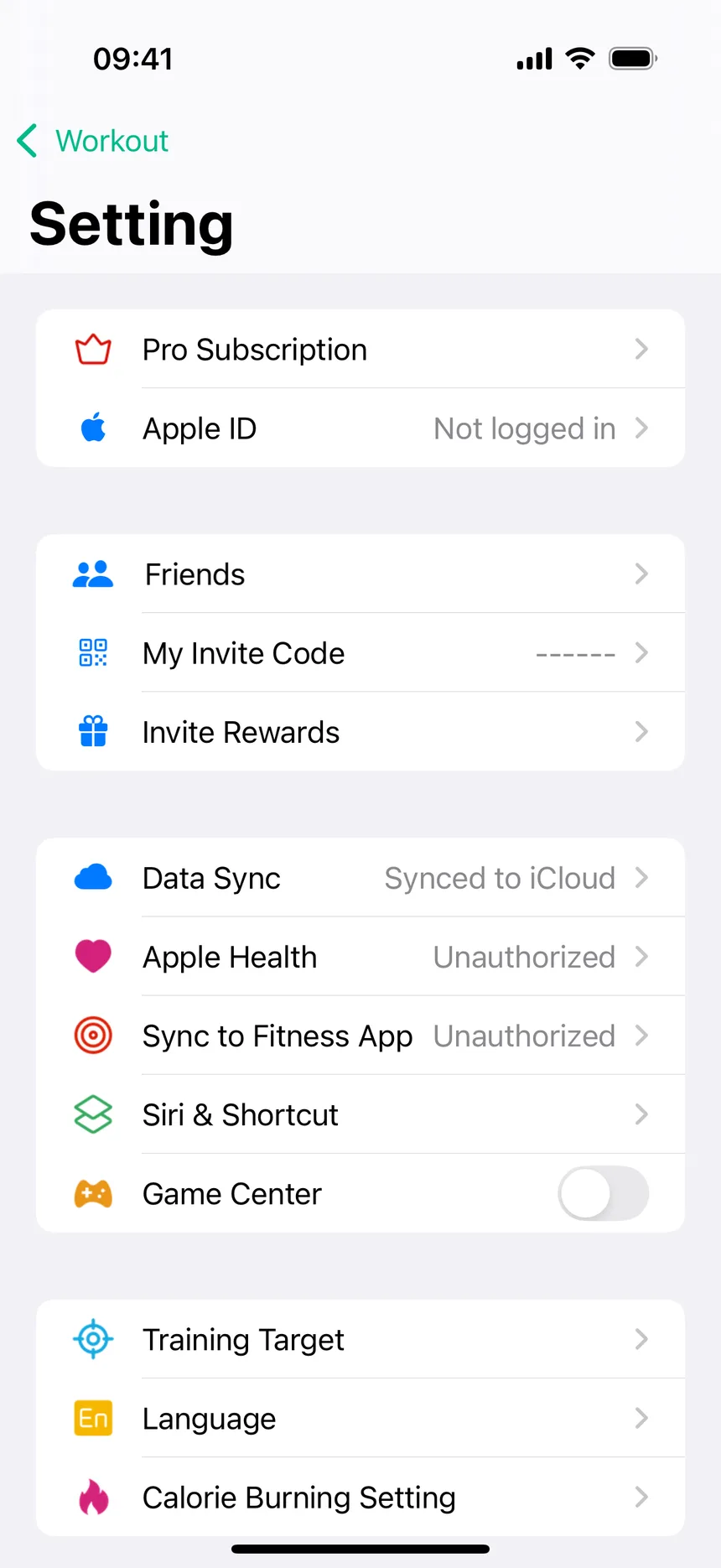
2Read the panel, then tap Go
Tapping the row opens a short explainer: CounterUps supports sharing some of your data to Apple Health, and it points out that you can always manage this later from the Health app itself — your avatar, then Privacy, then Apps, then CounterUps. Tap "Go" in the top-right to continue.
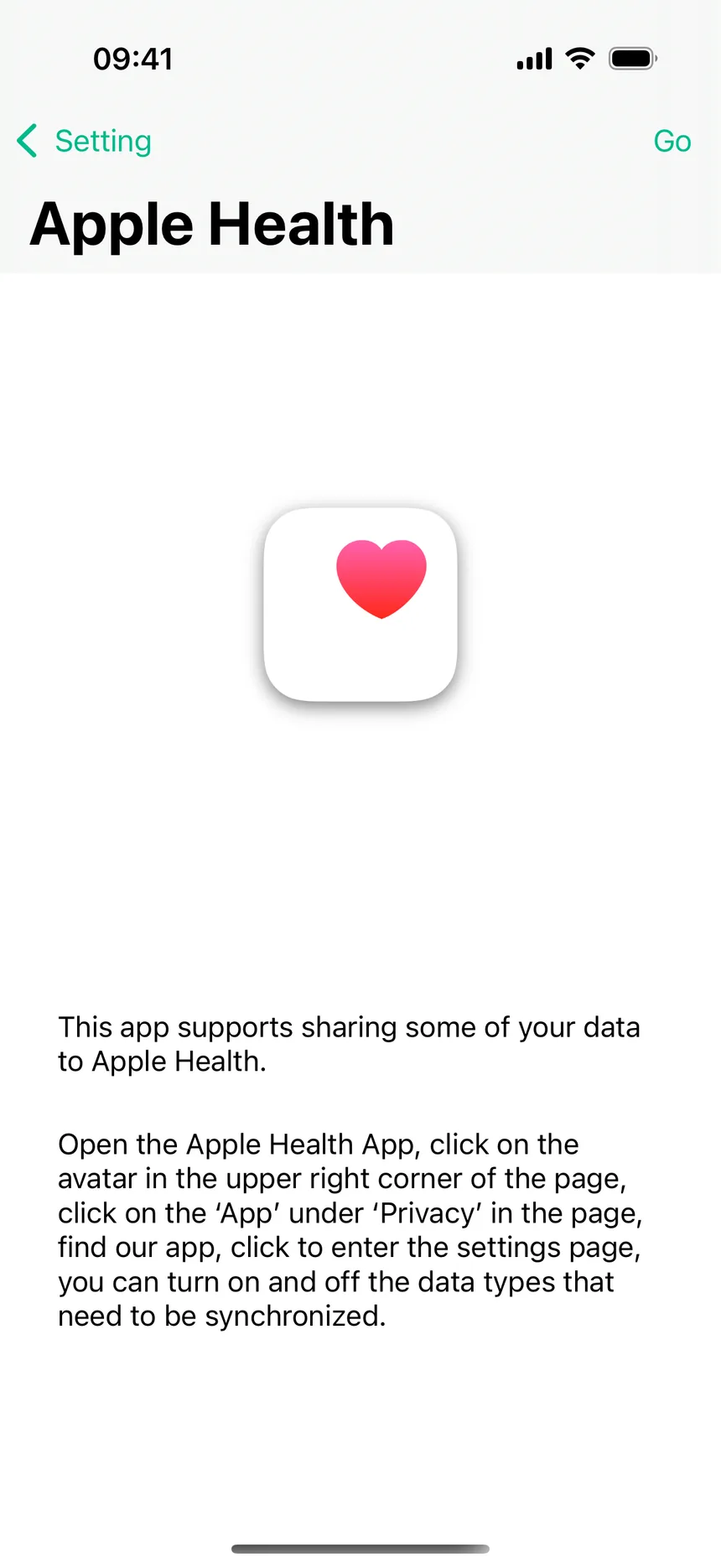
3Choose what to allow on the Health screen
"Go" hands off to iOS's own Health access screen — this isn't a CounterUps screen, it's Apple's standard permission list. It asks to write Workouts (so your sessions and calories land in Health) and to read Height, Weight, Date of Birth, Heart Rate, and Resting Heart Rate (used only to personalize CounterUps's own estimates). Toggle off anything you'd rather not share, then confirm at the bottom.
Once connected, the Apple Health row switches to "Authorized" and sync happens automatically in the background — there's nothing to trigger per session. The "Sync to Fitness App" row just underneath points at the same connection: Apple's own Fitness app reads from Health too, so finishing this setup covers both. If you ever change your mind, open the Health app, tap your profile picture, go to Privacy, then Apps, then CounterUps, and turn off whichever categories you no longer want shared.