CounterUps can count push-ups with the front camera: as your face moves down and up over the phone, the app detects the change in distance and adds one rep. Your hands stay on the floor the whole set.
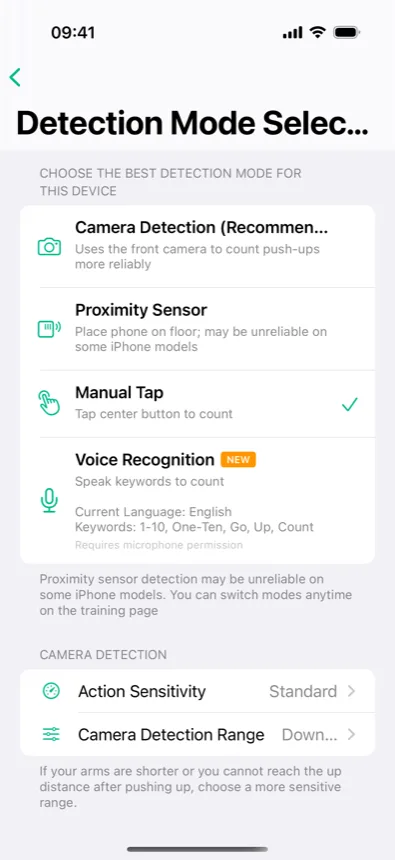
Camera Detection is the recommended mode on recent iPhones. If your device doesn't support it, the same menu offers three fallbacks — Proximity Sensor, Voice Recognition, and Manual Tap — and you can switch between them at any time.
Steps and screenshots verified against app version: 2026.10.7
1Open CounterUps and pick a training mode
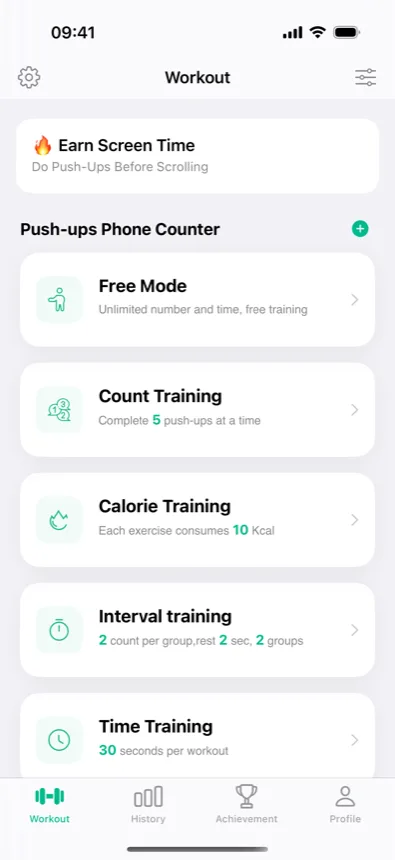
On the Workout tab, the "Push-ups Phone Counter" list offers five modes: Free Mode, Count Training, Calorie Training, Interval Training, and Time Training. Free Mode is the easiest way to try the camera — no target, just count.
2Start the session
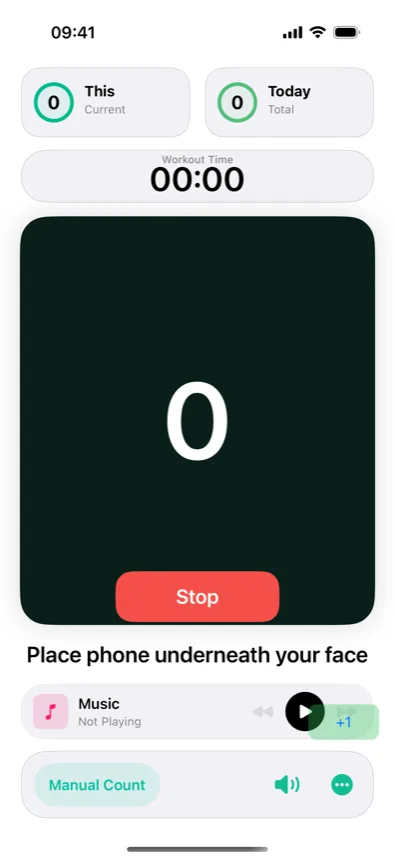
After a short countdown the counter screen appears: your current set and today's total at the top, the big rep counter in the middle, and a hint — "Place phone underneath your face" — at the bottom.
3Tap the detection-mode button
The chip at the bottom left of the counter screen shows the mode currently in use (for example "Manual Count"). Tap it to open Detection Mode Selection.
4Choose "Camera Detection (Recommended)"
Pick the first entry — it uses the front camera to count push-ups more reliably. Allow camera access when iOS asks. On the same page you can tune Action Sensitivity and Camera Detection Range; choose a more sensitive range if your reps stop registering near the top.
5Put the phone under your face and go
Lay the phone flat on the floor, screen up, roughly under your chin. Do full push-ups — lower until your face comes close to the screen, push back up. Each rep is counted (and announced) automatically; the set is saved when you tap Stop.
From now on CounterUps remembers Camera Detection as your mode. Every counted set lands in History, feeds your daily goal and streak, and syncs to Apple Health if you've allowed it.