Reminders live under your Profile, not the Workout tab — it's a general setting, not tied to any one training mode or plan. It's a local notification: CounterUps schedules it on your phone directly, so it still fires even if you're offline.
Steps and screenshots verified against app version: 2026.7.7
1Open Profile and tap Reminder
Switch to the Profile tab at the bottom of the screen. Under "Training & Settings," under Training Target, you'll find "Reminder."
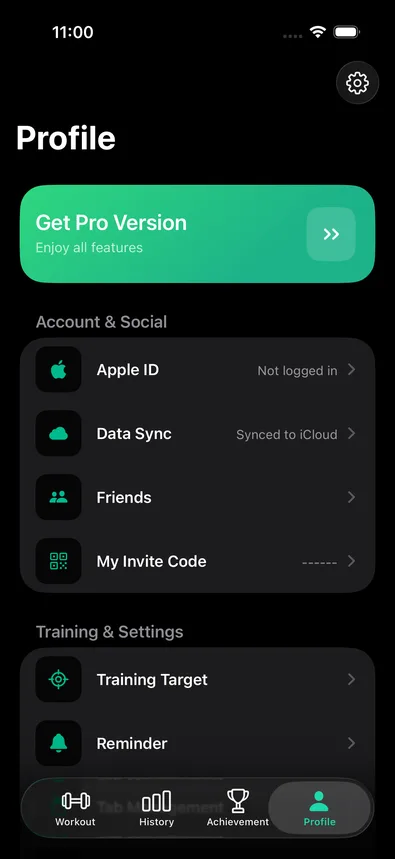
2Turn on the Reminder switch
The Reminder screen has one switch. The first time you turn it on, iOS also asks permission to send notifications — allow it, or the schedule you set next won't actually alert you.
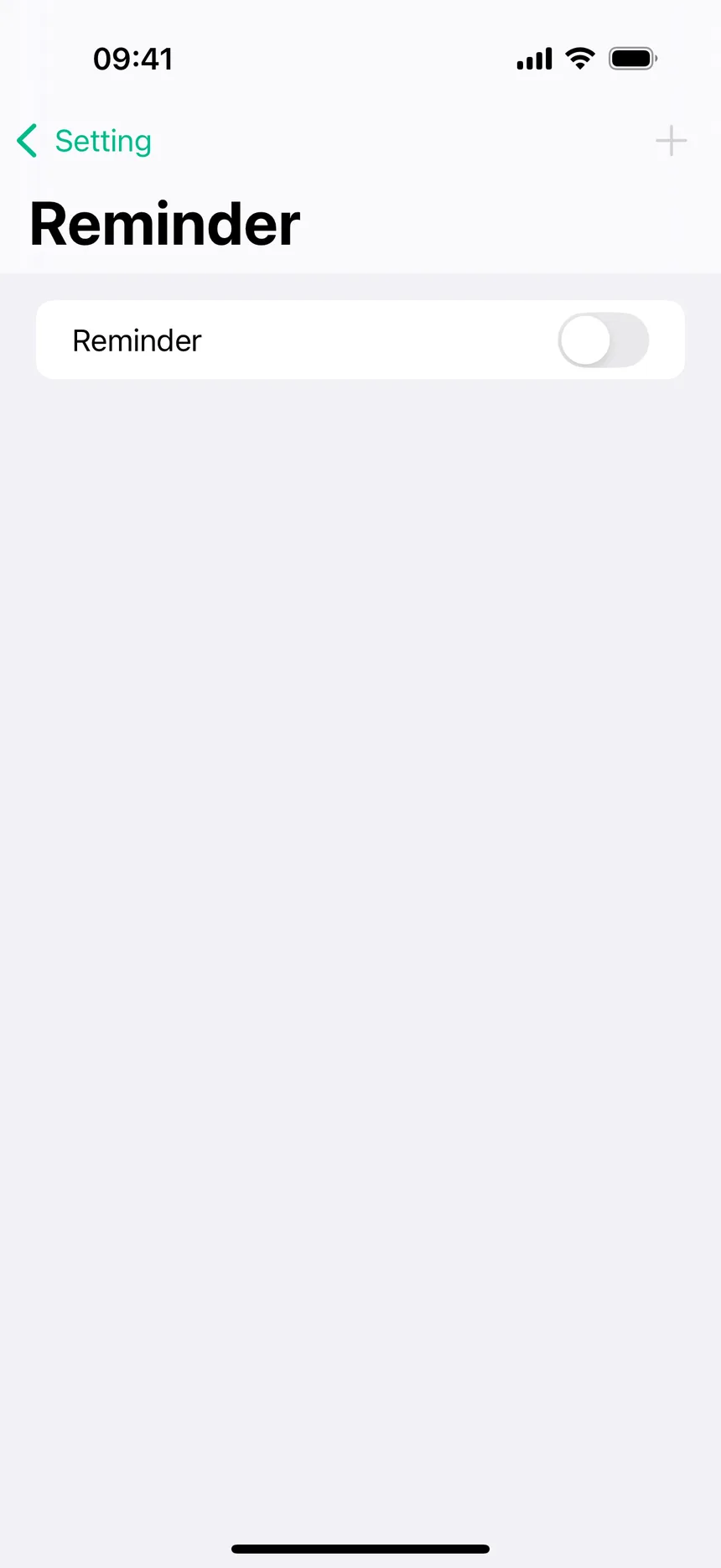
3Pick a time and a frequency
Turning the switch on opens a time picker right away — set the hour and minute, then choose how often: Daily, Every 2 days, Every 3 days, Weekdays, or Weekends. Confirm to save it; it appears in the list below as "Reminder time — 1." Tap the "+" in the top-right any time to add another reminder at a different time or frequency — useful for a morning and an evening slot. Tap an existing reminder to delete it.
Reminders are just a nudge — they don't start a workout or count anything by themselves. Tapping the notification opens CounterUps; you still pick a mode and go. If a reminder stops feeling useful, come back to this same screen, delete it, or flip the master switch off to pause all of them at once without losing your saved times.