Preview before you merge
See which cards will combine, what stays as the primary contact, and what changes—before anything is written. No surprise overwrites.
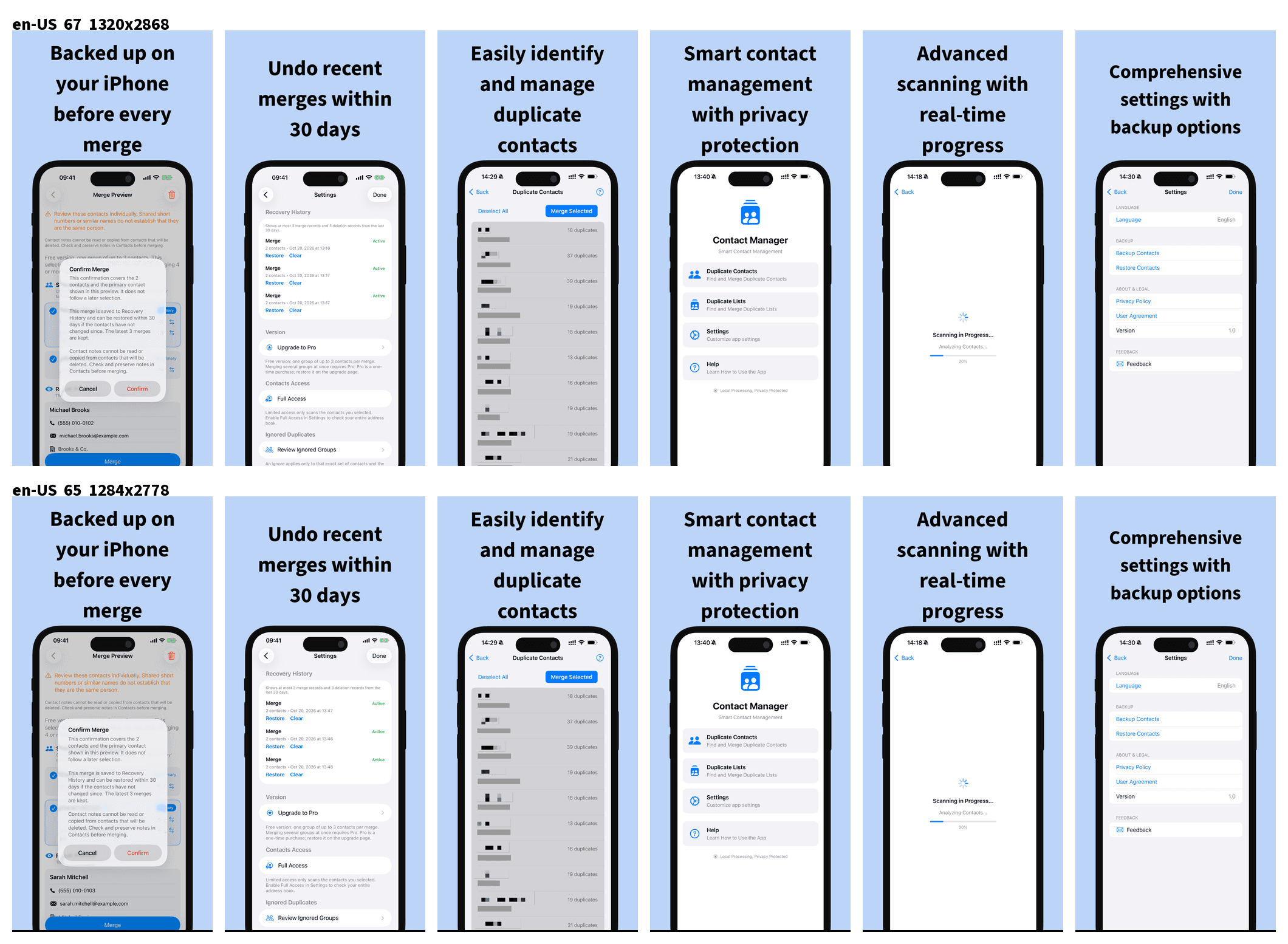
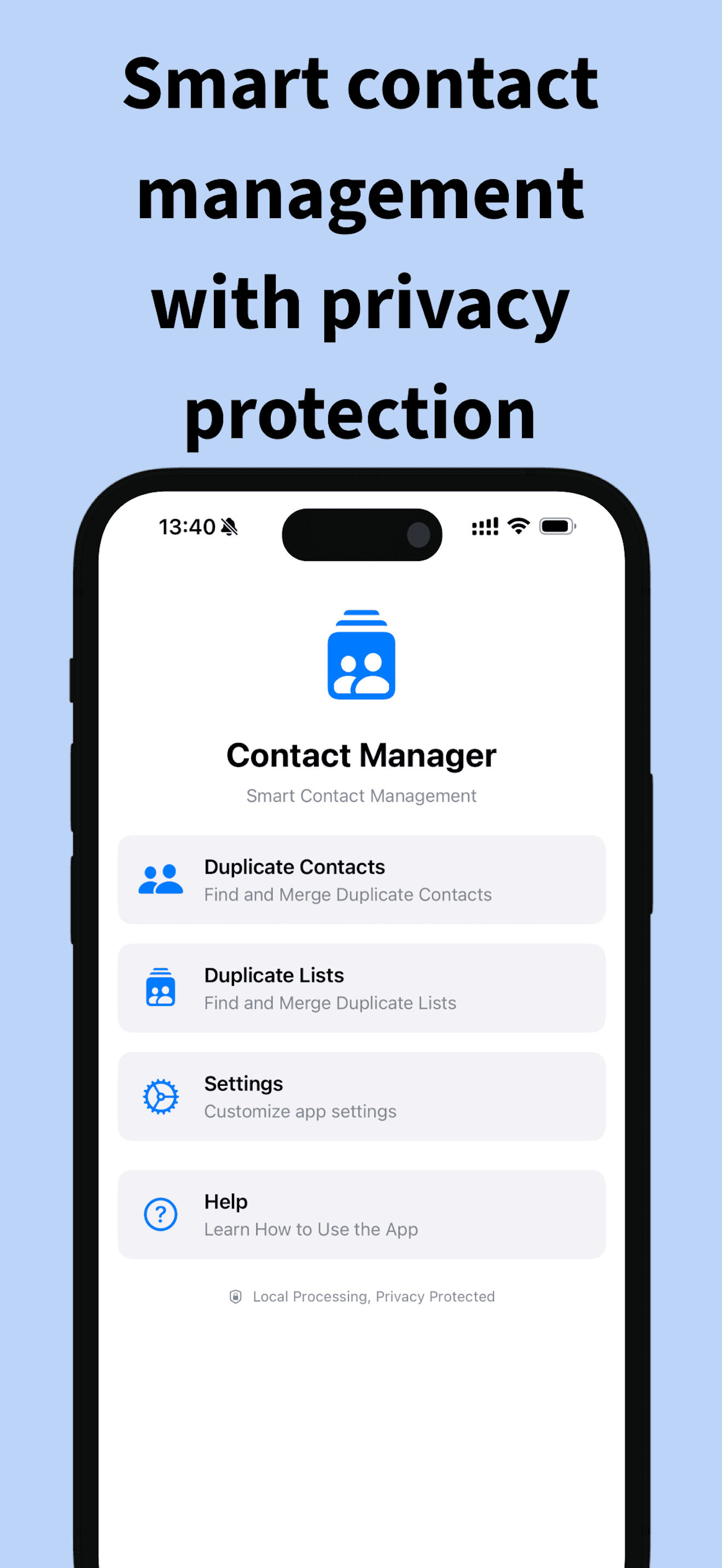
ContactMerge+ Cleaner finds duplicate contacts on your iPhone, shows you a clear preview, then merges only when you confirm. Undo the last merge or restore from Recovery History. Everything runs on your device—your contacts are not uploaded.
Built for duplicate contacts that need a human check before anything is saved.
See which cards will combine, what stays as the primary contact, and what changes—before anything is written. No surprise overwrites.
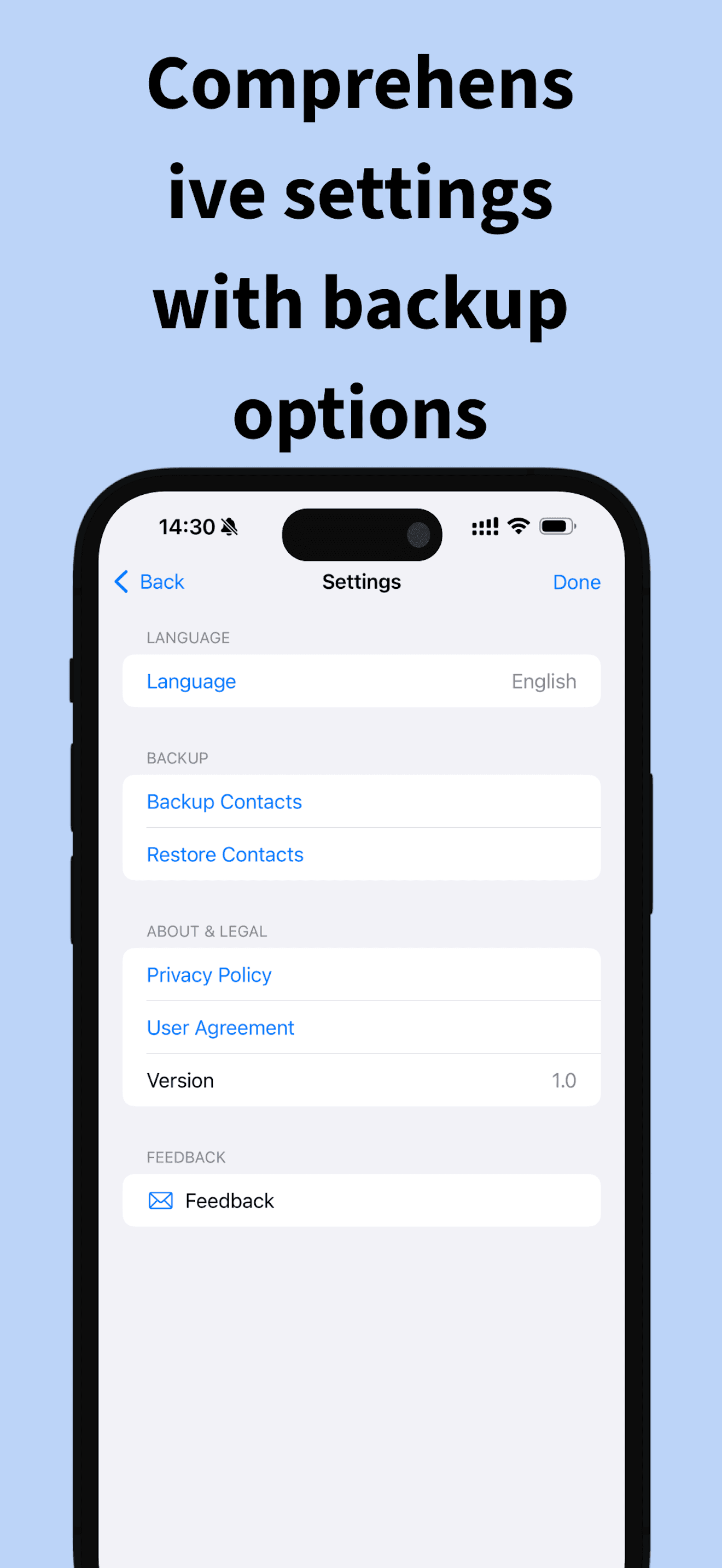
Made a merge you want to reverse? Undo the last merge. Recovery History keeps your last 3 merges or deletes for 30 days, using an on-device recovery journal written when you merge—not a forced export to a .vcf file.
Scanning, matching, and merging happen on your iPhone. ContactMerge+ does not collect, store, or send your contact data to our servers. Purchases go through Apple.
Apple’s built-in Contacts tools are helpful for many exact matches. Duplicates that only differ by country code, spacing, or how the number was saved can still look like two people. ContactMerge+ normalizes common phone and name patterns so those near-matches are easier to spot.
Why country-code duplicates get missed →Optional: export a vCard backup anytime from the app if you want an extra copy. It is not required before every merge.
Scan — Grant Contacts access when asked. The app scans on your device.
Review groups — Open a duplicate group and check the suggested matches.
Preview & choose primary — Confirm the primary card and what will be kept, then merge.
Undo if needed — Use Undo last merge, or open Recovery History (last 3 merges/deletes, 30 days).
No subscription. Pro price is always what Apple shows for your region.
| Free | Pro | |
|---|---|---|
| What you can merge | One duplicate group at a time | Unlock full merging |
| Group size | Up to 3 contacts in that group | Beyond the free limit |
| Payment | — | One-time purchase (price shown in the App Store). No subscription. |
US App Store example: Pro has recently been about $6.99—always check the price Apple shows for your country.
Unlock on the App StoreHonest answers about privacy, backups, Undo, Notes, and Pro.
No. Contact processing stays on your device. See the privacy policy for details.
No. Merges write an on-device recovery journal. You can optionally export a vCard backup yourself; it is not mandatory.
Undo last merge, plus Recovery History for the last 3 merges or deletes, kept for 30 days.
Notes on secondary cards are not read or migrated into the primary contact. If a note matters, copy it manually before you merge. More detail on Support.
No. Pro is a one-time App Store purchase. Price is shown in the store for your region.
See the App Store listing for the current iOS requirement and device compatibility.
Email SUPPORT_EMAIL or visit Support.
ContactMerge+ Cleaner
Free to try with one small group. Pro is a one-time unlock—price shown in the App Store.