ContactMerge+ · Guide
How to merge duplicate contacts safely
Preview first, pick a primary card, merge only when it looks right, and use on-device Undo or Recovery History if you need to reverse a change.
Before you start
- Use a device you trust; Contacts access is required.
- Optional: export a vCard (.vcf) backup from the app or from Contacts if you want an extra copy. This is optional—ContactMerge+ does not force a .vcf export before merge. Merges write an on-device recovery journal instead.
- If a secondary card has an important Note, copy it somewhere safe first. Notes on secondary cards are not read or migrated into the primary contact.
Step 1 — Scan
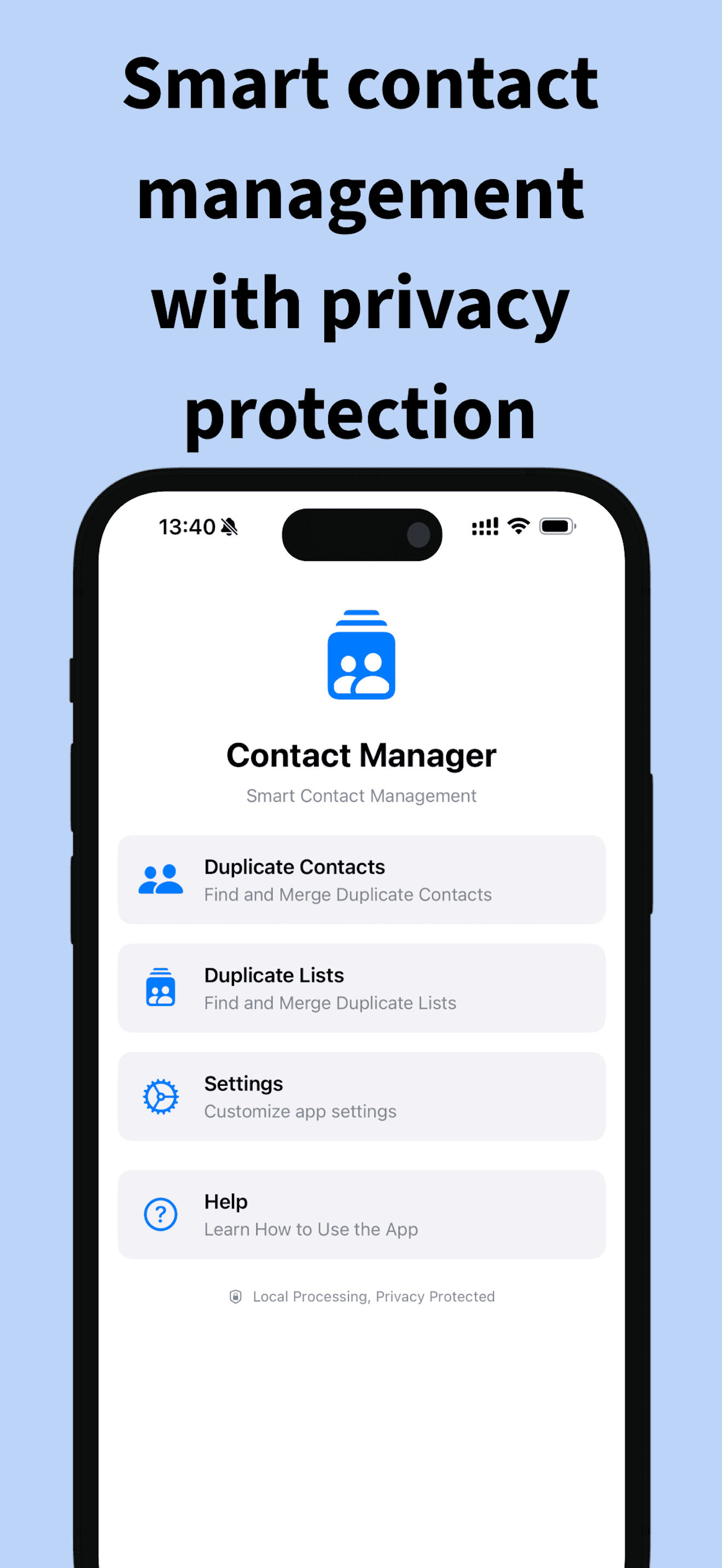
Open ContactMerge+ Cleaner and scan for duplicates. Processing stays on your iPhone.
Step 2 — Open a group and preview
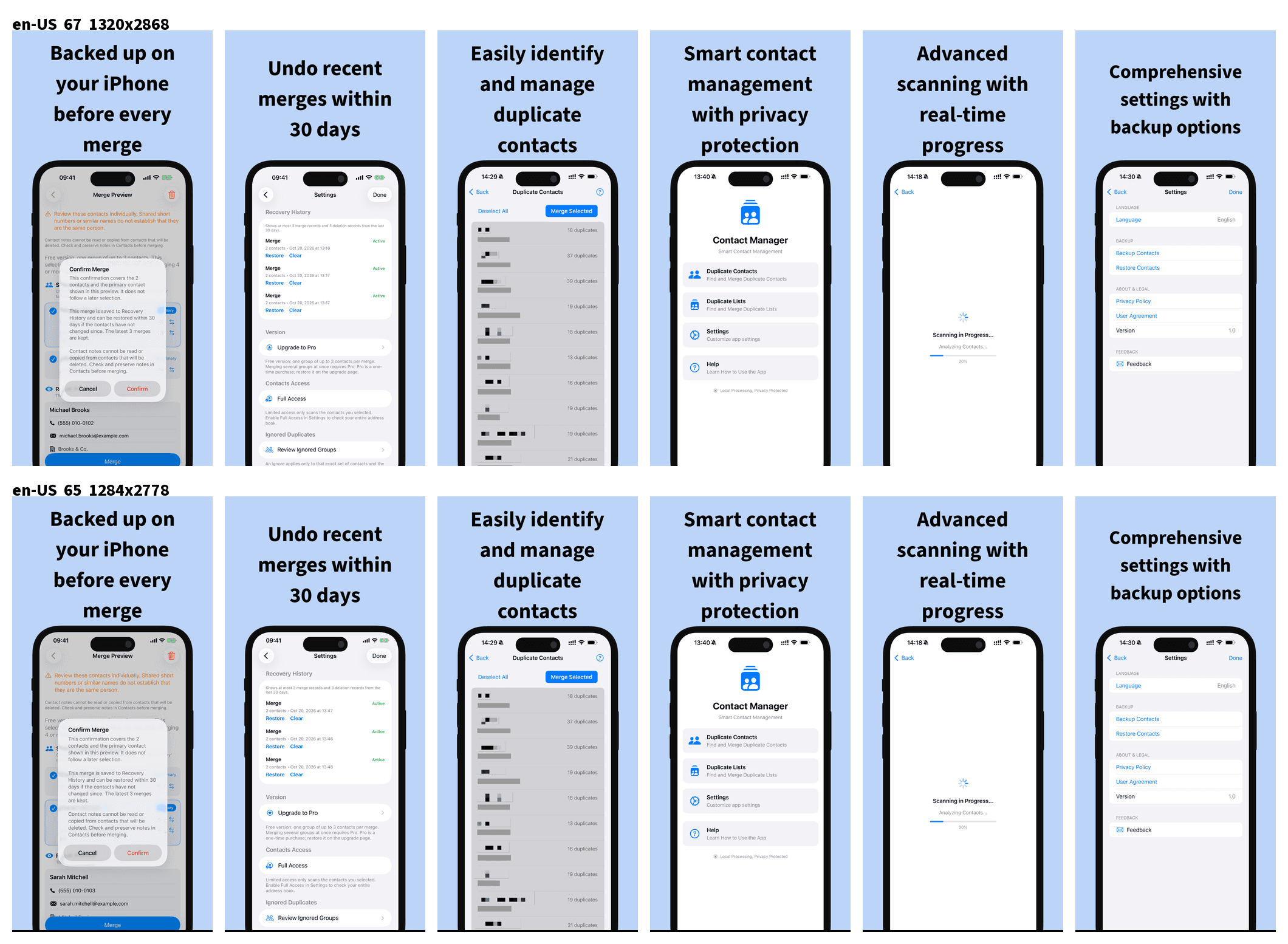
Pick a duplicate group. Check who is listed and how fields would combine. Use preview so you see the outcome before saving.
Step 3 — Choose the primary contact
Select which card should remain the primary. Confirm names, phones, and emails look right.
Step 4 — Merge
Confirm the merge only when the preview matches what you want.
Step 5 — Undo or Recovery History if needed
- Undo last merge if you need an immediate reverse.
- Recovery History keeps your last 3 merges or deletes for about 30 days on device.
Free vs Pro (so you are not surprised)
- Free: one duplicate group at a time, maximum 3 contacts in that group.
- Pro: one-time purchase (price shown in the App Store)—no subscription.
Honest limits
| Topic | Behavior |
|---|---|
| vCard backup | Optional, not required to merge |
| Recovery | On-device journal; Undo + last 3 / 30 days |
| Notes | Secondary-card notes not migrated |
| Upload | Contacts not uploaded to our servers |
More help
Country-code misses in system tools: see the country-code guide. Privacy: privacy policy. Support: support page. Email: SUPPORT_EMAIL
Get ContactMerge+ on the App Store
Related: iOS View Duplicates and country codes · Privacy