Why iOS “View Duplicates” often misses country-code duplicates
If you keep two cards for the same person—one saved as a local number and one with a + country code—Apple Contacts’ View Duplicates may not list them. That usually is not “your phone is broken.” It is how literal matching treats differently formatted phone strings.
What View Duplicates is good at
Built-in duplicate review works well when two cards share the same email or the same phone digits stored the same way. Exact and near-exact overlaps are where the system feature shines.
Where formatting gets in the way
People save numbers in many shapes:
- +44 7700 900123 vs 07700 900123
- +1 (415) 555-0100 vs 4155550100
- Spaces, dashes, or parentheses in one card but not the other
To a person, those are clearly the same line. To a simple comparison, they can look like two different values. Country codes make this especially common if you travel, import SIM entries, or sync from older address books.
We are not saying Apple’s tool is defective. We are saying string-level differences (country code, punctuation, leading zero) often fall outside what a quick system pass treats as the same contact.
How ContactMerge+ helps
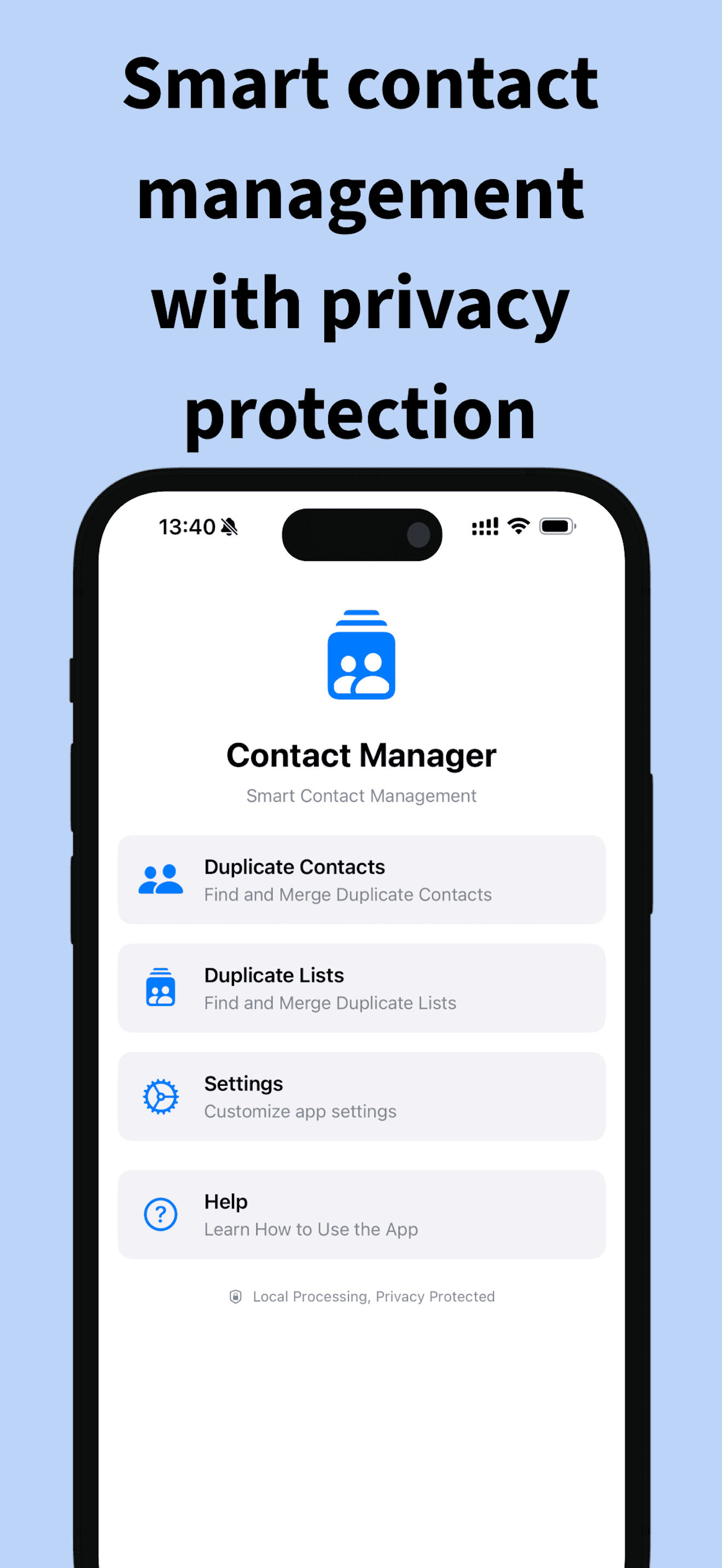
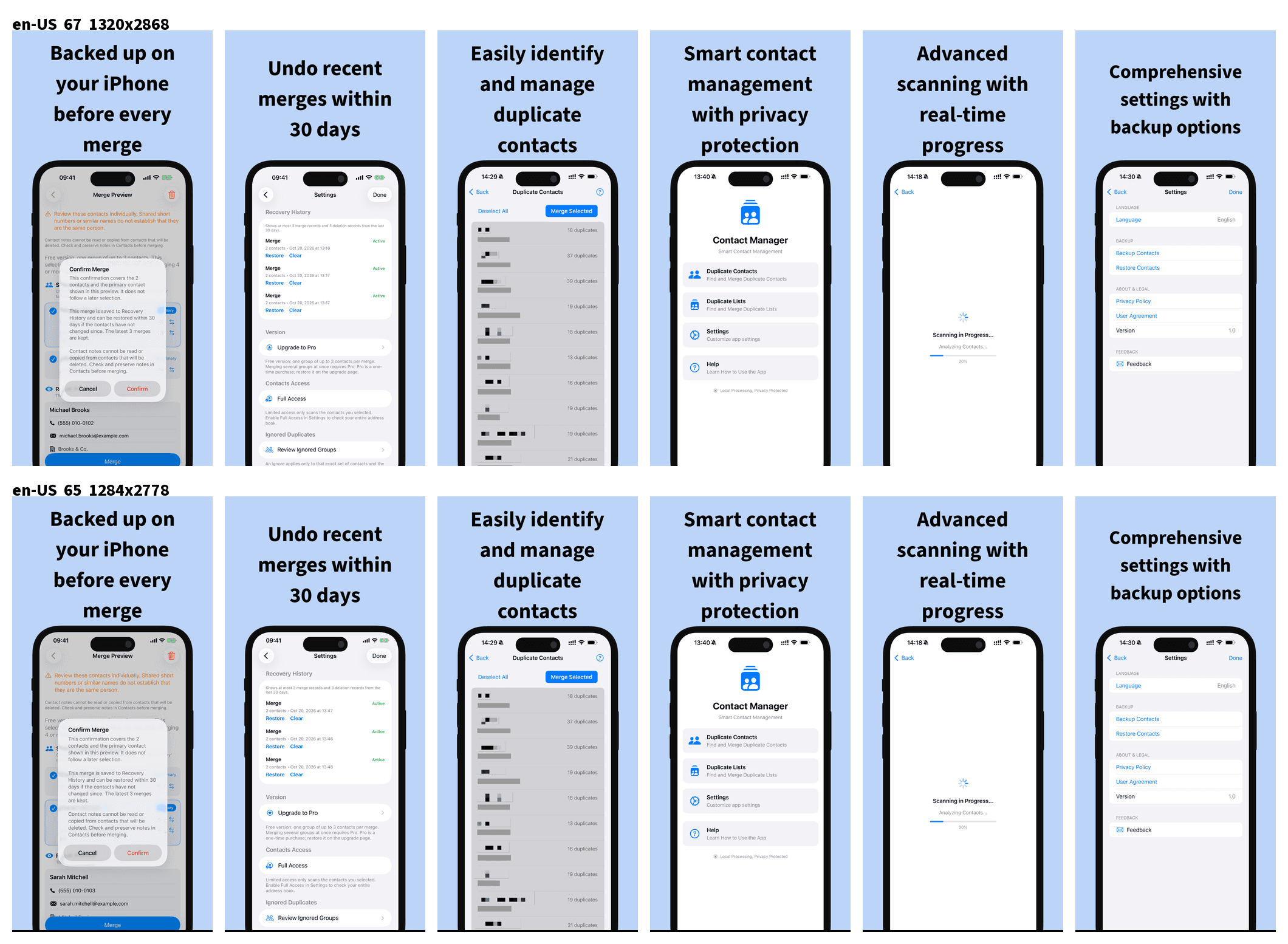
ContactMerge+ Cleaner scans on your device and groups contacts that look like duplicates after common phone and name normalization—so country-code and formatting variants are easier to spot. You still get a preview before anything merges, and you can undo or use Recovery History if you change your mind.
What to do next
- Open ContactMerge+ and run a scan (Contacts permission required).
- Review groups that look like the same person with different number formats.
- Preview, pick the primary card, then merge only when it looks right.
Try ContactMerge+ on the App Store
Related: How to merge contacts safely · Support